> ## Documentation Index
> Fetch the complete documentation index at: https://alore.mintlify.site/llms.txt
> Use this file to discover all available pages before exploring further.
# How to Share a Campaign Within an Organization?
**Step 01**: Go to [campaign.alore.io](https://campaign.alore.io/) and login
using your credentials
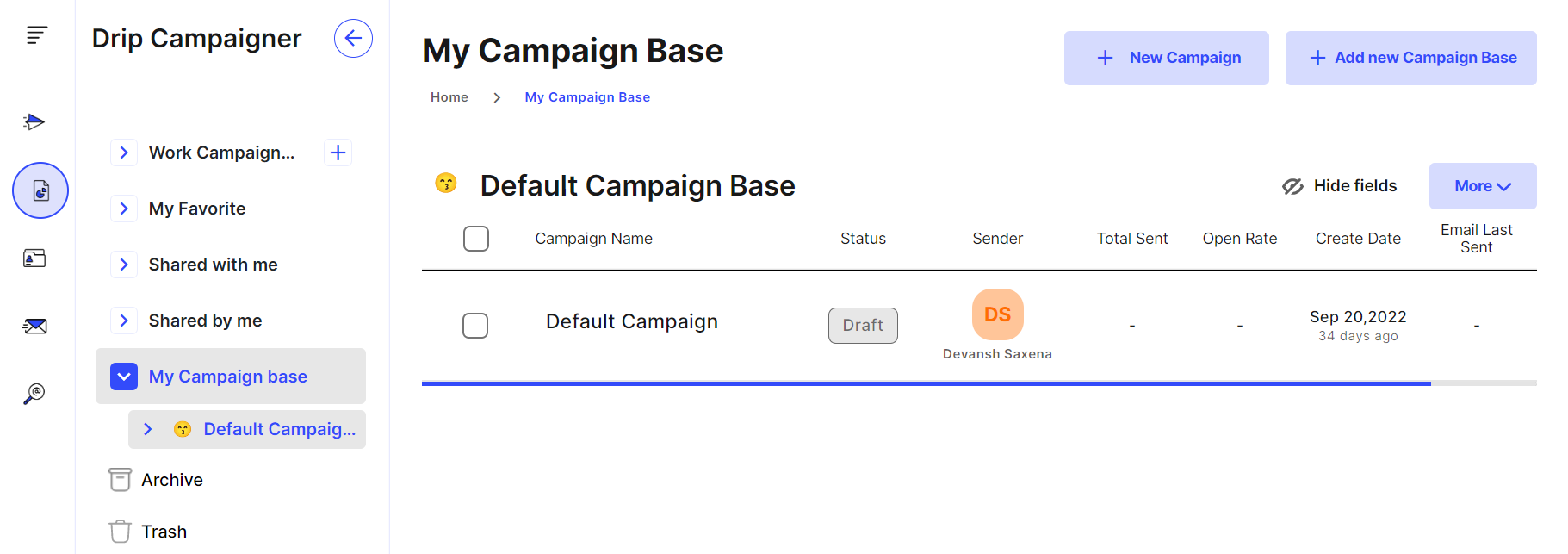
**Step 02**: Go to the campaign you run.
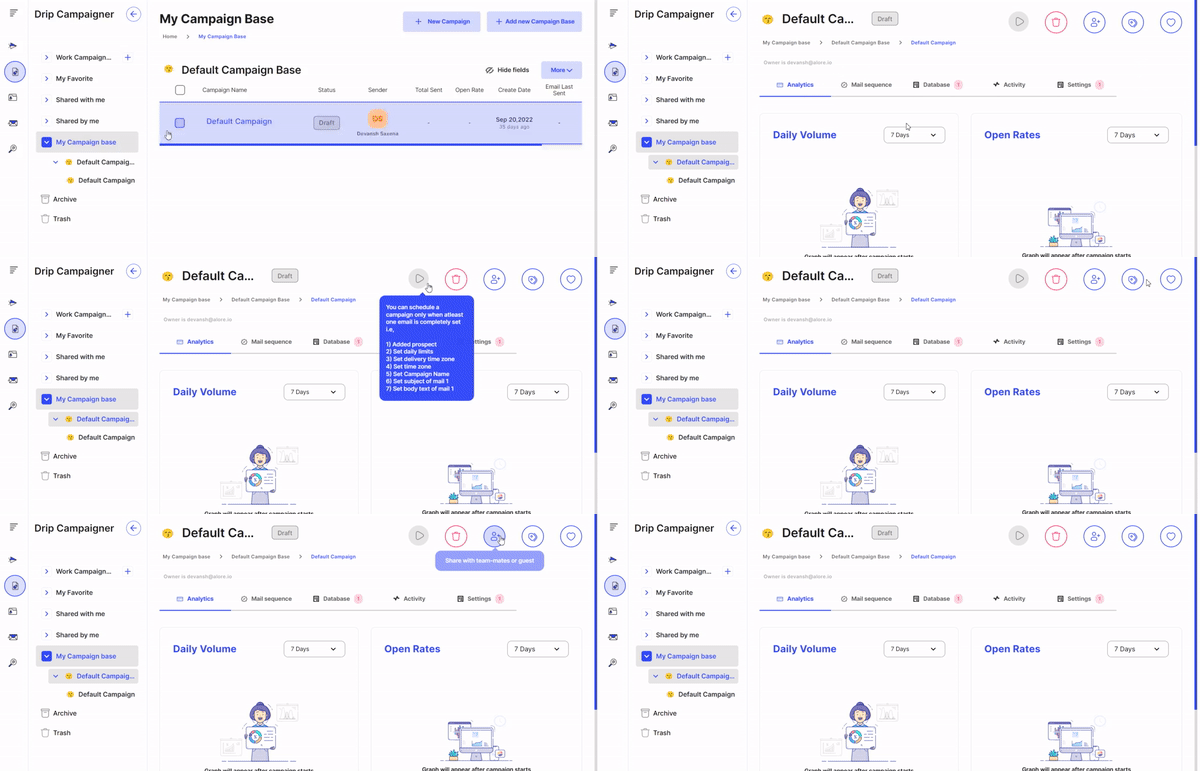
**Step 03**: Inside the campaign, at the top right there are multiple options
present:
* **Delete the campaign**
* **Share the campaign**
* **Add or view tags**
* **Add to favorite**
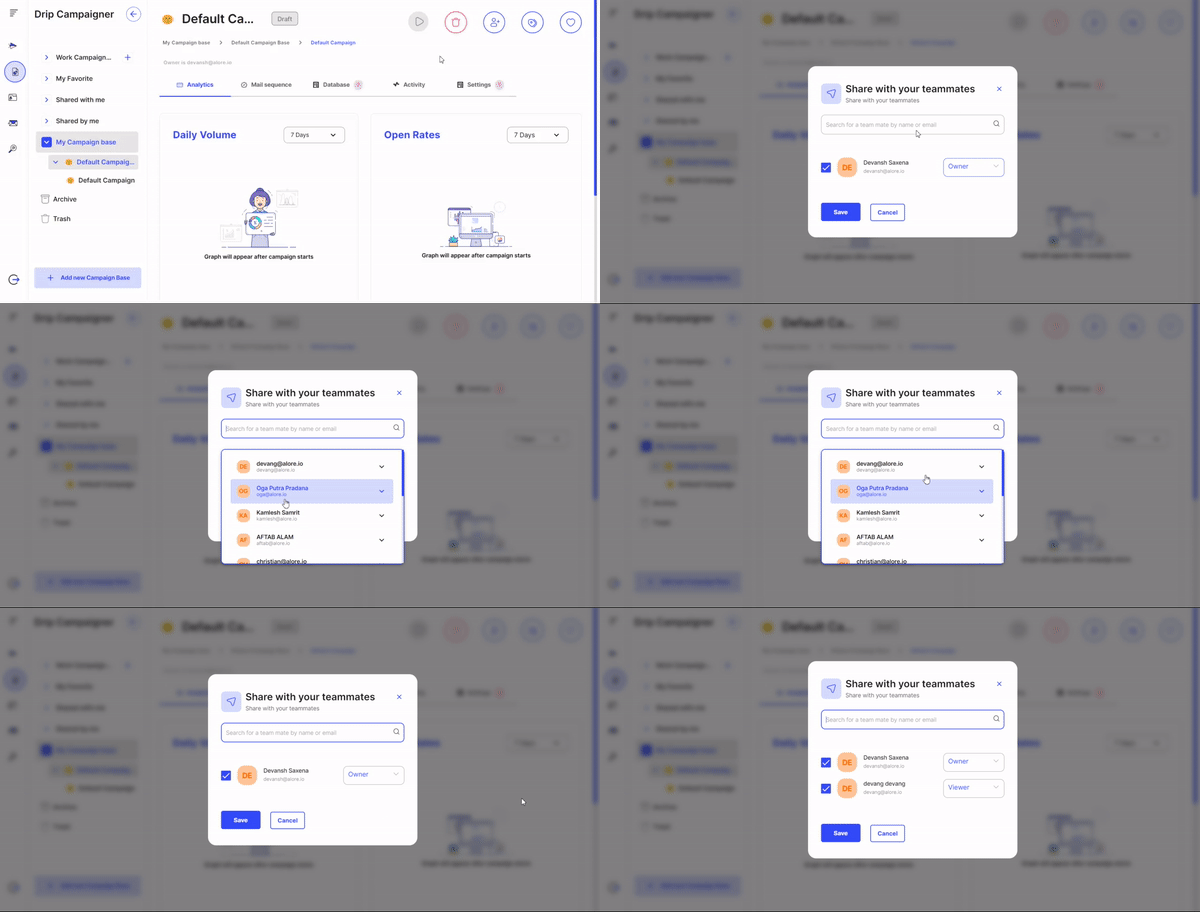
**Step 04**: Click on the **Share with team-mate or guests** button and a pop –
up menu will appear. Search for the teammate with whom you want to share the
campaign.
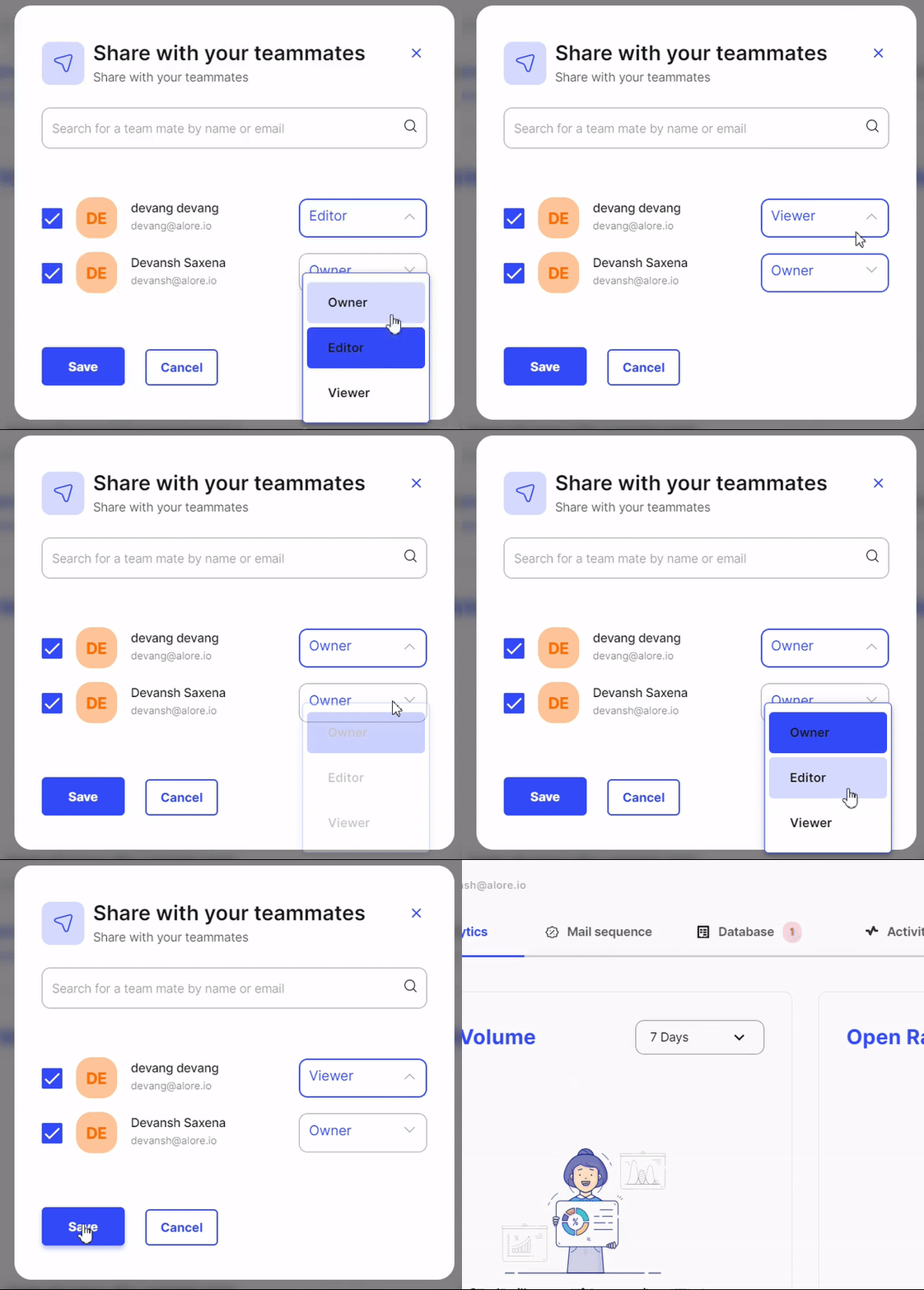
**Step 05**: Once you select the teammate you can now assign the rights they can
have in the campaign. Like:
-> Owner
-> Editor
-> Viewer
***
### Related Articles: